
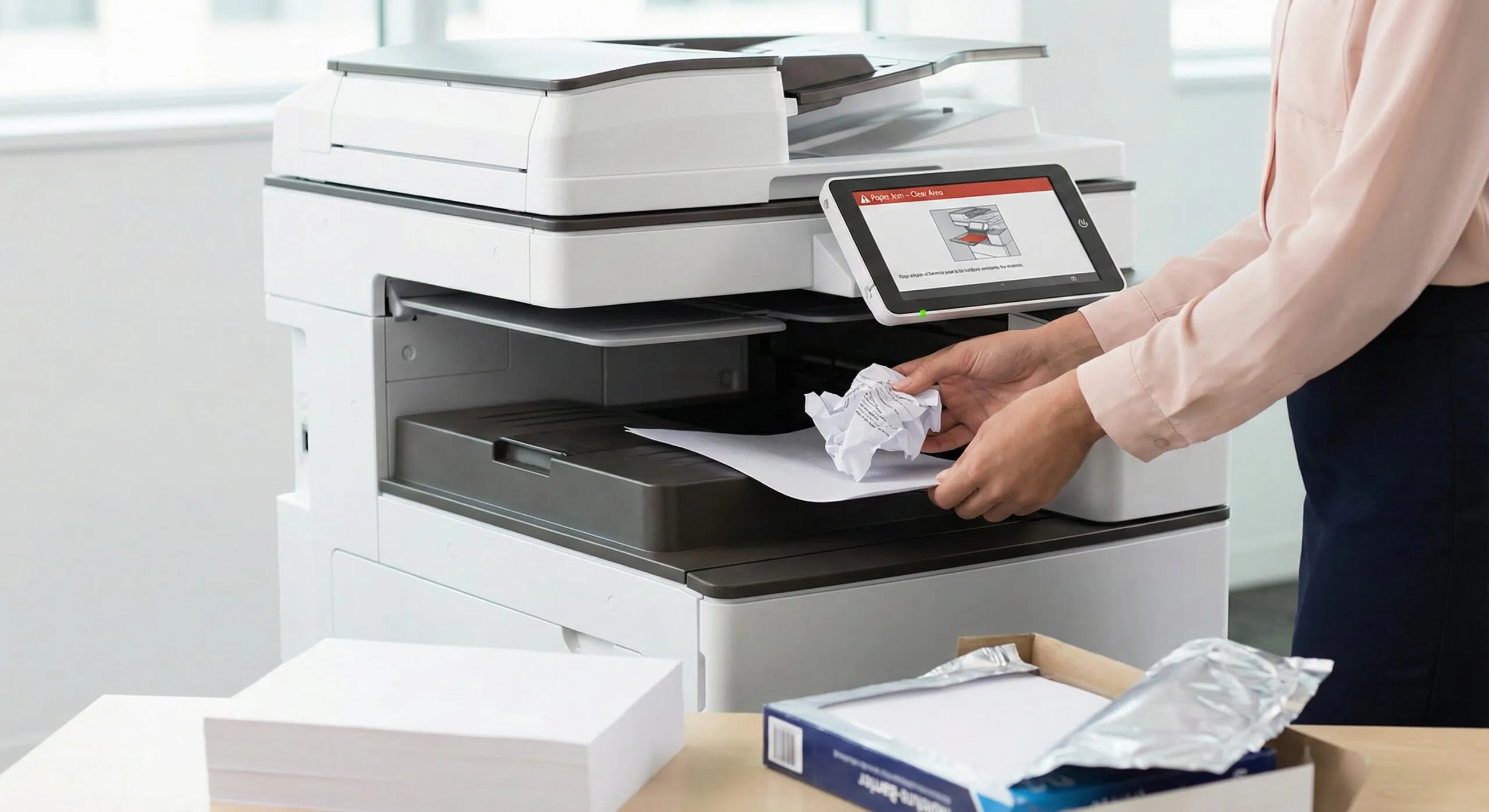
It’s 4:55 PM. You have a proposal due at 5:00 PM, and as you hit “Print,” you hear the dreaded crunching sound of paper crumpling inside the machine. Knowing how to fix printer paper jams quickly—and understanding why they happen in the first place—is an essential skill for any office professional.
While modern multifunction printers (MFPs) from top manufacturers like Toshiba, Kyocera, and Canon are engineering marvels designed for high reliability, they are still subject to the laws of physics. Paper jams aren’t just bad luck; they are usually the result of specific environmental factors, user errors, or maintenance needs.
Here is a guide to the most common culprits behind paper jams and how to get your office back up and running.
The Invisible Enemy: Humidity and Paper Quality
The most overlooked cause of printer jams isn’t the machine at all—it’s the paper. Paper is hygroscopic, meaning it acts like a sponge, absorbing or releasing moisture depending on the environment.
-
Summer Humidity: In high humidity, paper absorbs moisture and becomes wavy. When these damp sheets travel through the heated fuser unit of your MFP, they curl aggressively, leading to misfeeds and jams.
-
Winter Static: Conversely, in dry winter months, paper loses moisture. This creates static electricity, causing pages to stick together. The printer tries to pull one sheet but grabs two or three (a double-feed), resulting in a jam.
-
The Fix: Store your paper in a cool, dry place. extensive industry testing suggests keeping reams sealed in their wrappers until you are ready to load them. If your office fluctuates in temperature, consider a dehumidifier for your storage room.
Loading Trays Correctly to Fix Printer Paper Jams
We have all been there—rushing to refill an empty tray to get a job done. However, how you load the paper dictates how well the machine feeds it.
Fanning and Alignment
Do not just drop a brick of paper into the tray. Take a moment to flex (or “fan”) the stack to separate the sheets and introduce a small amount of air between them. This helps prevent the static sticking mentioned above.
Guide Rails are Critical
Inside every paper cassette, there are adjustable guide rails. These must be flush against the paper stack.
-
Too loose: The paper will enter the feed path crooked, leading to a skew jam.
-
Too tight: The guides pinch the paper, preventing the rollers from lifting the sheet.
Ensure the guides are locked into the correct size markers (e.g., Letter, Legal, 11×17).
Hardware Issues: When the Machine Needs Help
If you are using fresh, dry paper and loading it correctly, but the device still jams, the issue may lie with the hardware.
-
Worn Feed Rollers: The rubber rollers that grab the paper eventually lose their tread, becoming slick. Instead of gripping the paper, they spin against it, leaving the sheet in the tray and triggering a “jam” error because the sensor didn’t detect paper movement.
-
Paper Dust: Cheap paper sheds “dust” that coats the sensors and rollers over time, reducing traction.
-
Debris: It sounds obvious, but staples, paper clips, and torn corners from previous jams are frequent saboteurs.
According to reliable testing from Keypoint Intelligence, regular preventative maintenance is the single biggest factor in extending the life and reliability of office print technology.
Step-by-Step: How to Fix Printer Paper Jams Safely
When the screen flashes that angry red error message, follow these proven steps to clear it without damaging the device.
-
Stop and Look: Read the MFP’s screen. Modern devices usually provide a visual map showing exactly where the jam is located (e.g., “Right Door A” or “Fuser Unit”).
-
Follow the Path: Always pull the jammed paper in the direction of the paper path (the direction the paper travels while printing).
-
Use Two Hands: If a sheet is visible, grab it with both hands to apply even pressure. pulling with one hand increases the risk of tearing the paper.
-
Check for Scraps: If the paper tears, you must find the missing piece. Even a scrap the size of a fingernail can cause the very next job to jam.
-
Reset: Once cleared, open and close the designated access doors to reset the sensors.
Warning: Never use scissors or sharp objects to dig paper out of a printer. You risk damaging the delicate film on the fuser or scratching the drum, which will permanently ruin your print quality.
When to Call for Backup
Some jams are beyond a quick fix. If you hear grinding noises, if the paper is tearing in the same spot every time, or if the screen displays a service code, it is time to call your support provider.
At Doceo, our Support Center is staffed by local experts who understand these machines inside and out. Whether you need a simple roller replacement or a more complex repair, we ensure your business keeps moving forward.
Prevention: The Best Way to Fix Printer Paper Jams
The best way to fix printer paper jams is to prevent them. By using high-quality paper, storing it correctly, and partnering with a service provider for regular maintenance, you can virtually eliminate this office headache.
If your current copier is jamming more often than it prints, it might be time to upgrade to a more reliable solution.
Schedule a FREE print technology assessment – consultation with a Doceo Advisor today.